That is why knowing how to check your certificates is no longer a once-a-year chore. It is a routine part of staying online and staying secure. The practical question most people are really asking is simple: how do I verify that my certificates are valid and properly configured? This guide answers exactly that, from a quick-and-easy browser check to enterprise-wide monitoring.
A quick note on terminology before we begin. Although this article uses the familiar phrase “SSL certificate,” the protocol in use today is TLS (Transport Layer Security). SSL was the original standard, but it has been retired in favor of the more secure TLS. The term “SSL” stuck around as shorthand, so you will see it in product names and everyday conversation, but everything that follows refers to TLS certificates. For that reason, we will use “SSL/TLS” throughout the rest of this guide. Learn more about the difference in our blog on SSL vs TLS.
What is an SSL/TLS certificate, and why checking it matters
An SSL/TLS certificate is a digital credential that proves a website’s identity and lets a browser and server open an encrypted connection. Think of it the way you would a driver’s license: it carries information about its owner, it is issued by a trusted authority, and it comes with an expiration date. A certificate goes one step further, binding a public key to that identity so its authenticity can be checked by verifying the issuer’s signature rather than by inspecting the card itself. That comparison is a useful way to picture the wider system a certificate belongs to.
That system is public key infrastructure, or PKI. If a certificate is the license, PKI is the agency that decides who gets one and vouches for it. A Certificate Authority (CA) issues the certificate only after verifying the requester, and every trusted certificate traces back through a chain to a root authority that browsers and operating systems already recognize. When that chain checks out, the connection is trusted automatically and the visitor never has to think about it. If you want the deeper background on how these credentials work, you can read all that and more in our dedicated page for what is an ssl certificate.
Checking certificates matters more than ever because their useful life is shrinking fast. Certificates that once lasted for years now last only a fraction of that time (to as few as 47 days by 2029), and industry standards bodies have committed to shortening the maximum validity period further over the next several years, eventually down to a window measured in weeks rather than months. Shorter lifespans are good for security because they limit how long a compromised key stays useful, but they also mean certificates expire far more often. A schedule that used to need attention once a year now demands ongoing vigilance, which makes regular checks essential rather than optional.
What parts of a certificate to pay attention to
When you open a certificate to inspect it, the sheer number of fields can be overwhelming. In practice, a handful of them tell you almost everything you need to know. Here is how to prioritize.
Check these first
- Subject Alternative Name (SAN). This is the field modern clients actually match the hostname against. The older Common Name field is effectively ignored for hostname validation now, so focus on the SAN and confirm that the exact name or wildcard you expect is present.
- Validity period (notBefore and notAfter). Confirm the certificate is currently live and has not expired. Because maximum validity keeps getting shorter, brief windows are increasingly normal. It is also worth a quick sanity check that the start date is not in the future, which can happen with clock skew or a certificate deployed ahead of schedule.
- Issuer. This tells you which CA signed the certificate and lets you eyeball whether the chain makes sense. Cross-check it against the Authority Key Identifier to confirm the certificate links to the intermediate you expect, and inspect the issuer’s own certificate if you want to be thorough.
- Basic Constraints. This distinguishes an end-entity (leaf) certificate from a CA certificate. A leaf certificate should be marked as not being a CA. A leaf that claims CA status is a clear red flag.
Then review these
- Key Usage and Extended Key Usage. For a TLS server certificate, the Extended Key Usage should include server authentication. Key Usage should permit digital signatures, plus key encipherment for older RSA key-exchange setups.
- Public key algorithm and size. Confirm the key is a modern, adequately sized RSA key, an ECDSA key on a current curve, or a valid key for ML-DSA/SLH-DSA if the PKI supports post-quantum signatures. This is a fast way to catch anything undersized or unexpected.
- Signature algorithm. The entire chain should be signed with SHA-256 or stronger. Any use of the long-broken SHA-1 means the certificate is unsafe on arrival.
If you need to confirm revocation status
- The Authority Information Access field points to the OCSP responder and the CA-issuers location. If you want to know more about OCSP, see our dedicated guide.
- The CRL Distribution Points field points to the certificate revocation list. For more on reading these lists, see our guide on the certificate revocation list.
- The serial number is what you use for revocation lookups.
- Embedded Signed Certificate Timestamps matter if you are verifying Certificate Transparency compliance for a publicly trusted certificate.
How to check a TLS certificate in your browser
The fastest way for anyone to verify a site’s security status is right in the browser, and it takes only a few seconds.
Checking the URL for HTTPS
Start with the address bar. If the URL begins with HTTPS, the site has an active TLS certificate securing the connection. This is the simplest possible signal. Modern browsers reinforce it: Chrome, for example, now steers connections to HTTPS by default, so an unsecured site stands out immediately.
Using the padlock icon to view certificate details
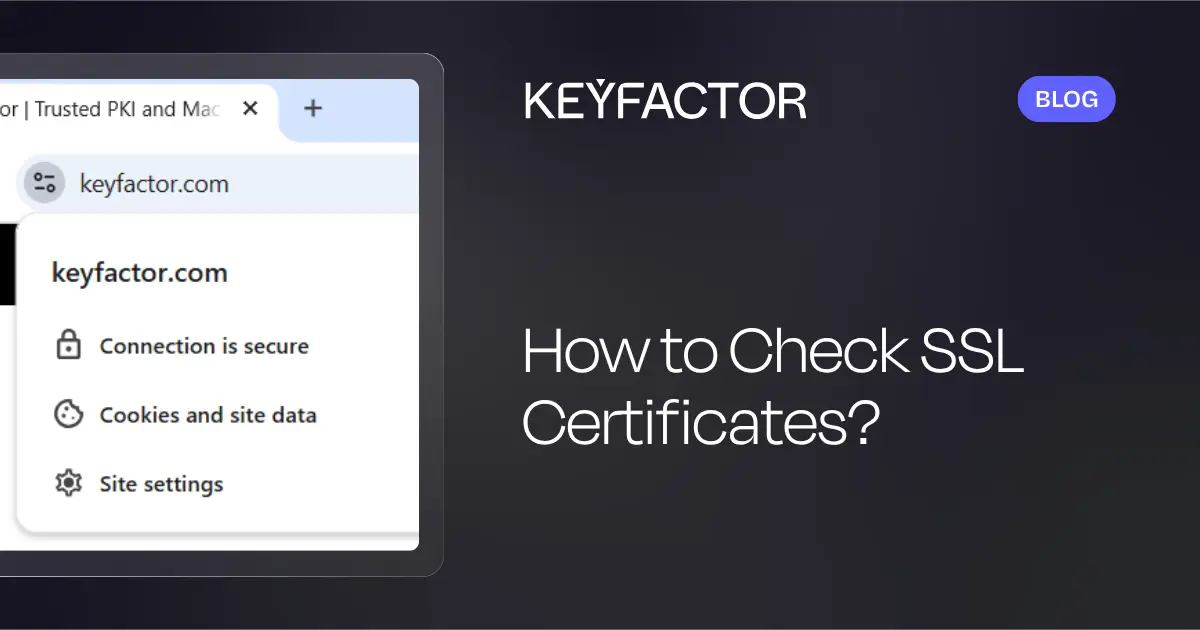
For more than a yes-or-no answer, click the padlock icon near the address bar. This opens a summary of the site’s certificate, where you can read details such as the issuer and the valid duration, including the expiry date. To go deeper, open the “Details” tab in the certificate view. There you can see the full certificate hierarchy, which shows how the site’s certificate chains up through any intermediates to a trusted root. This works in the same general way across popular browsers such as Chrome, Firefox, and Edge, even if the exact clicks differ slightly.
What different validation levels reveal
What you see in the padlock view also depends on how the certificate was validated. All TLS certificates provide the same encryption, but the CA verifies the requester to different depths, and that difference shows up in the details.
- Domain Validated (DV): The CA has only confirmed that the requester controls the domain. You will typically see just the issuing authority’s details and no organization information. DV suits personal or internal sites.
- Organization Validated (OV): The CA has verified the organization’s legal existence as well as the domain, so organization details appear in the certificate. OV is a good fit for commercial sites that collect user data.
- Extended Validation (EV): The CA has performed an in-depth review of the organization’s legal, physical, and operational existence. Browsers may surface enhanced indicators such as the organization’s name, signaling a higher level of trust.
Reading these differences helps you judge how much identity assurance a site actually offers, which matters most for businesses handling sensitive or financial data. For a more detailed explanation about how are certificates verified, see our deep-dive on certificate verification.
How to check TLS certificates in Windows certificate stores
If you own the site, you need to confirm that your own certificates are installed and configured correctly. On Windows systems, the built-in tools make this straightforward.
Using the Windows Certificate Manager tool
The Certificate Manager gives you a direct view of the certificates stored on a machine. To see the certificates on the local device, open a Command Prompt, type certlm.msc, and press Enter. The left pane lists the certificate stores, and you can expand any of them to inspect an individual certificate in more detail. To view the certificates tied to the current user account instead, run certmgr.msc from a Command Prompt.
Using the MMC snap-in
For a more complete view, use the Microsoft Management Console. Open it by entering mmc from a Command Prompt, then choose File and Add or Remove Snap-in. Select Certificates from the list, click Add, choose Computer Account, and finish the wizard. (Had you wanted certificates tied to your identity, you would have chosen “My user account” instead.) Once the snap-in loads, double-click Certificates (Local Computer) in the left pane and expand a store, such as Personal, to list its certificates in the center pane. Double-click any certificate to open a window showing its properties: the valid duration, expiry date, certification path, and any associated private key details.
Auditing trusted roots with sigcheck
The Sysinternals sigcheck utility offers a quick, scriptable way to audit which root certificates a machine trusts. Run it with the -tv switch and it downloads Microsoft’s current Certificate Trust List and reports the roots in the machine’s store that are not on it, which is a fast way to spot untrusted or unexpected trust anchors. It is a useful complement to the Certificate Manager when you want a readout without clicking through the GUI. For a refresher on how roots and intermediates fit together, our guide on the certificate chain of trust covers the underlying model.
Understanding certificate stores
If you prefer to locate certificates manually, it helps to know how they are organized. Certificate stores are containers on the server that group certificates by purpose:
- Personal: Holds certificates that come with a private key, typically the ones issued to your own server.
- Trusted Root Certification Authorities: Holds the root certificates the system trusts, including third-party and customer-organization certificates.
- Intermediate Certification Authorities: Holds certificates issued to subordinate CAs that sit between your leaf certificate and a root.
Knowing which store a certificate lives in tells you a lot about its role in the trust chain.
How to check TLS certificates using command-line tools
IT and DevOps teams often need to verify certificates programmatically or on remote servers where no browser is involved. Command-line tools are built for exactly this.
Checking certificates with OpenSSL
OpenSSL is the cross-platform workhorse for certificate work. Beyond generating a Certificate Signing Request or creating a self-signed certificate for testing, it can inspect certificates directly.
To read the details of a local certificate file, including its validity dates, you can run a command such as:
openssl x509 -in certificate.pem -noout -text
Which displays the entire certificate. To pull just the expiration date, narrow the output:
openssl x509 -in certificate.pem -noout -enddate
To inspect a live remote server, open a connection and capture the certificate it presents:
openssl s_client -connect example.com:443 -servername example.com
You can pipe that connection into the x509 command above to read the expiry date or full details of the certificate the server is actually serving, which is the best way to confirm what visitors receive rather than what you think is installed. To validate the full chain against a trusted CA bundle, the verify command checks that every certificate links correctly back to a trusted root:
openssl verify -CAfile chain.pem certificate.pem
Together these commands let you confirm a certificate is live, correctly chained, and serving the right hostname, all without leaving the terminal.
How to verify TLS certificate validity and expiration
Most certificate checks come down to one question: is this certificate still valid? Every TLS certificate carries a finite lifespan with a set expiry date, and the moment that date passes, the certificate is no longer trusted.
Certificate lifespans and why they are shrinking
Certificate lifespans have been on a steady decline. Historically they stretched across multiple years; more recently the maximum has been closer to a single year; and the governing standards bodies have agreed to keep cutting that ceiling in stages until the maximum validity is measured in weeks rather than months. The logic is straightforward: the shorter a certificate lives, the smaller the window an attacker has if a private key is ever compromised, and the more often teams are nudged toward automated, agile certificate management. The trade-off is that certificates now turn over far more frequently, so a check-and-forget approach no longer works.
When certificates need to be reissued early
Even before a certificate reaches its expiry date, certain events can force an early reissue:
- Security vulnerabilities. Incidents like the Heartbleed flaw can expose private keys and require immediate replacement.
- Algorithm deprecation. As weak algorithms such as SHA-1 are retired, certificates relying on them must be reissued with stronger cryptography.
- Organizational changes. Mergers, acquisitions, or rebrands can change the identity a certificate needs to represent.
- Policy updates. A change in internal or industry security policy may call for reissuance ahead of schedule.
What happens when a certificate expires
For visitors, an expired certificate means a browser security warning that blocks access to the site and undermines their trust. For the organization, the consequences compound: service outages when critical systems reject the lapsed certificate, compliance failures where valid encryption is mandated, and a wider security risk across the environment. This is precisely why proactive expiration tracking is worth the effort.
How to check TLS certificates at enterprise scale
Checking one certificate is easy. Checking dozens or hundreds across a sprawling environment is a different problem entirely, and it is where most organizations run into trouble.
Why manual tracking fails at scale
As certificate counts grow, spreadsheets and memory stop working. Certificate sprawl sets in, visibility fades, and it becomes hard to answer basic questions like how many certificates you manage or which ones expire next. A single certificate slipping through the cracks can trigger an outage, a security gap, or a compliance failure. With lifespans shrinking, the renewal workload multiplies, and manual tracking shifts from merely inefficient to an active liability. Common failure points include:
- Certificate expiration: missed renewals that take systems down.
- Multiple certificates on one domain: overlap that adds maintenance overhead and confusion.
- Lack of visibility: no reliable inventory of what exists or when it lapses.
Using TLS scanners and network discovery
A TLS scanner solves the visibility problem by finding certificates for you across your network’s TLS endpoints. In a tool like Keyfactor’s AgileSec, discovery is organized around defined networks, and each network spawns its own discovery and monitoring job so administrators can segment scanning and tune performance. Setting one up follows a clear pattern:
- Define the network. Specify the range using CIDR notation, individual IP addresses, or specific hostnames, and set port ranges as needed.
- Assign an orchestrator pool. Scanning runs through orchestrators, and custom pools let you separate duties by location.
- Schedule the work. Discovery jobs sweep every endpoint in the network to find new certificates, while monitoring jobs watch certificates already flagged for tracking.
- Set thresholds and recipients. Configure the expiration threshold that triggers an alert and name who should receive notifications.
- Add quiet hours. Exclude sensitive time windows so scans run only when you want them to.
Once a scan completes, you can review every endpoint it found, drill into the details of a specific TLS endpoint and its certificate, and see which jobs discovered it. Imported certificates are tagged by the location where they were found, so you always know where a given certificate lives.
Automating certificate monitoring
Discovery is only the start. Continuous, automated monitoring is what keeps a large environment safe as lifespans shrink. Automation delivers ongoing scanning, expiration alerts well ahead of the deadline, and consistent policy enforcement, all while removing the manual errors that creep into hand-managed processes. The natural endpoint of this approach is the ACME protocol (Automated Certificate Management Environment), which streamlines interactions between your servers and CAs to handle issuance, renewal, and revocation automatically. Originally built for Let’s Encrypt, ACME is now widely supported and is a cornerstone of managing certificates at scale without downtime.
How Keyfactor can help
Every challenge described in this guide, from tracking a single expiry date to governing thousands of certificates, points to the same need: a way to manage the full certificate lifecycle with speed and control. That is what Keyfactor is built for.
- TLS scanning and network-wide discovery with AgileSec locate and monitor TLS endpoints across your environment, so no certificate stays hidden.
- Keyfactor Command provides end-to-end certificate lifecycle management, covering discovery, inventory, issuance, renewal, and revocation from one place.
- Automated expiration alerts and policy enforcement give teams plenty of notice before a certificate lapses and keep configurations aligned with your standards.
- ACME support from EJBCA automates issuance and renewal at scale, which becomes essential as certificate lifespans continue to shrink.
As validity periods keep contracting and post-quantum cryptography approaches, simply deploying certificates is no longer enough. They have to be managed with agility. If you want to see how that works in practice, request a demo or contact the Keyfactor team.
Got SSL certificate questions? We’ve got answers.
How do I check if a website has an SSL certificate?
Look at the URL in your browser’s address bar. If it begins with HTTPS, the site has an active TLS certificate. Click the padlock icon next to the URL to view the certificate details, including the issuer, expiry date, and validation level.
How do I check my SSL certificate’s expiration date?
In a browser, click the padlock icon and open the certificate details to find the expiry date. On a server, use OpenSSL to read the certificate’s end date, or open the Windows Certificate Manager with certlm.msc to see the validity period directly.
How do I find all SSL certificates installed on my server?
On Windows, use the Certificate Manager (certlm.msc) or the MMC snap-in to browse the certificate stores. For a network-wide view, run a TLS scanner to automatically discover every certificate across your TLS endpoints.
What happens if my SSL certificate expires?
Browsers display security warnings that block visitors from reaching your site, which erodes trust and drives traffic away. For organizations, an expired certificate can cause service outages, compliance failures, and security vulnerabilities.
How do I renew an SSL certificate?
Generate a new Certificate Signing Request, submit it to your Certificate Authority with the required details, complete any necessary domain or organization validation, and install the renewed certificate files on your server. The process mirrors obtaining a certificate for the first time.
Can I check an SSL certificate from the command line?
Yes. OpenSSL inspects both local files and remote servers. Connect to a live server with openssl s_client -connect example.com:443, then pipe the result into openssl x509 -noout -enddate to read the expiration date without opening a browser.
How do I remove an expired SSL certificate?
On Windows, open the MMC console, go to the Certificates snap-in, find the expired certificate under the Personal store, and delete it. On Linux, run dpkg-reconfigure ca-certificates to deselect a CA, or edit the CA configuration file and run update-ca-certificates.
Why are SSL certificate lifespans getting shorter?
Industry standards bodies have agreed to reduce the maximum validity period in stages over the coming years, eventually to a window of just a few weeks. Shorter lifespans limit the exposure if a private key is compromised and push organizations toward automated certificate management.